


Get Sandbox Credentials
1. Create a DPC Sandbox login
You’ll enter info about you and your organization and create a password. Then you’ll receive an email with a confirmation link. It may take a few minutes to receive this email.
2. Generate a client token in the Sandbox site
Client tokens are issued to your organization and authenticate your access to the API.
- Log into the DPC Sandbox.
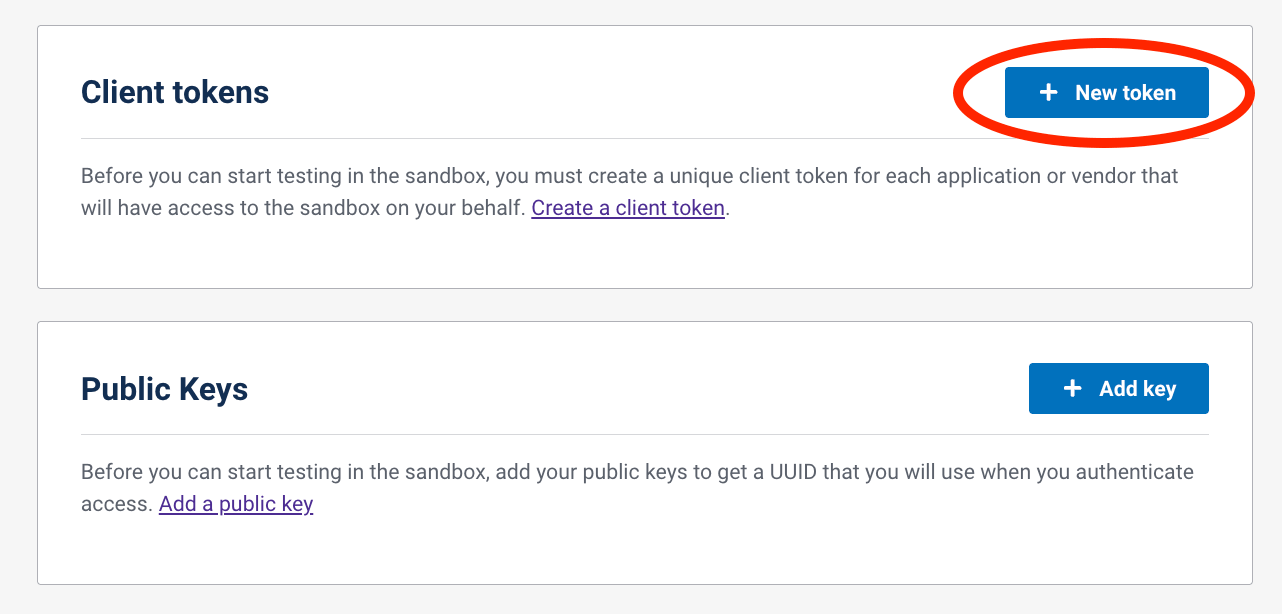
- Select New Token.
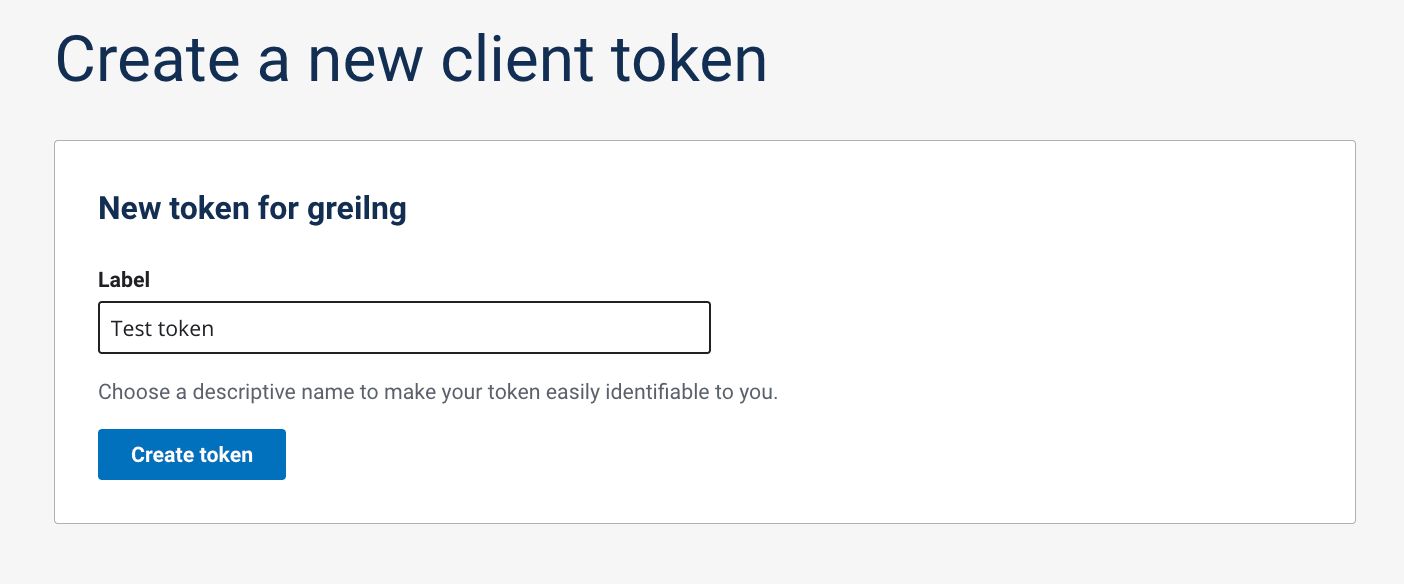
- Label the token with a recognizable name. Then select Create token.
- Copy or download the token displayed on screen.
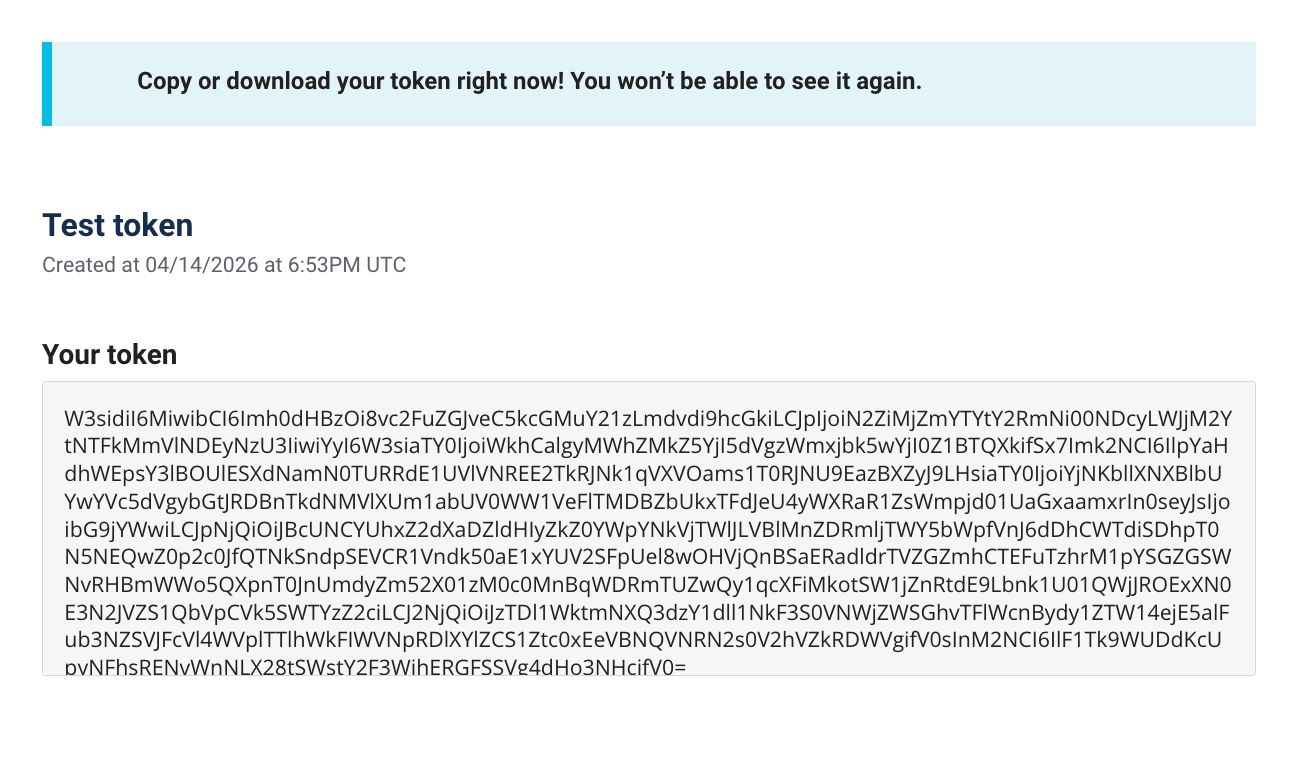 This is the only time this client token will be visible. You'll want to save it for later use.
- Make sure to renew your token every year.
- When using production data, you'll need to create a token for every organization that works with the API.
- Choose Go to portal to create your public and private keys.
3. Create a public key
You'll need your public key ID to get a bearer token.
Why we require a public key
Public keys verify that bearer token requests come from an authorized application. They ensure the private key used to sign your JSON Web Token (JWT) matches a public key previously uploaded to DPC.
Store the files you'll create in the following steps in one folder. These include a private.pem, public.pem, snippet.txt, snippet.txt.sig, and signature.sig file.
Steps to create a public key
- Select Add key from the Sandbox
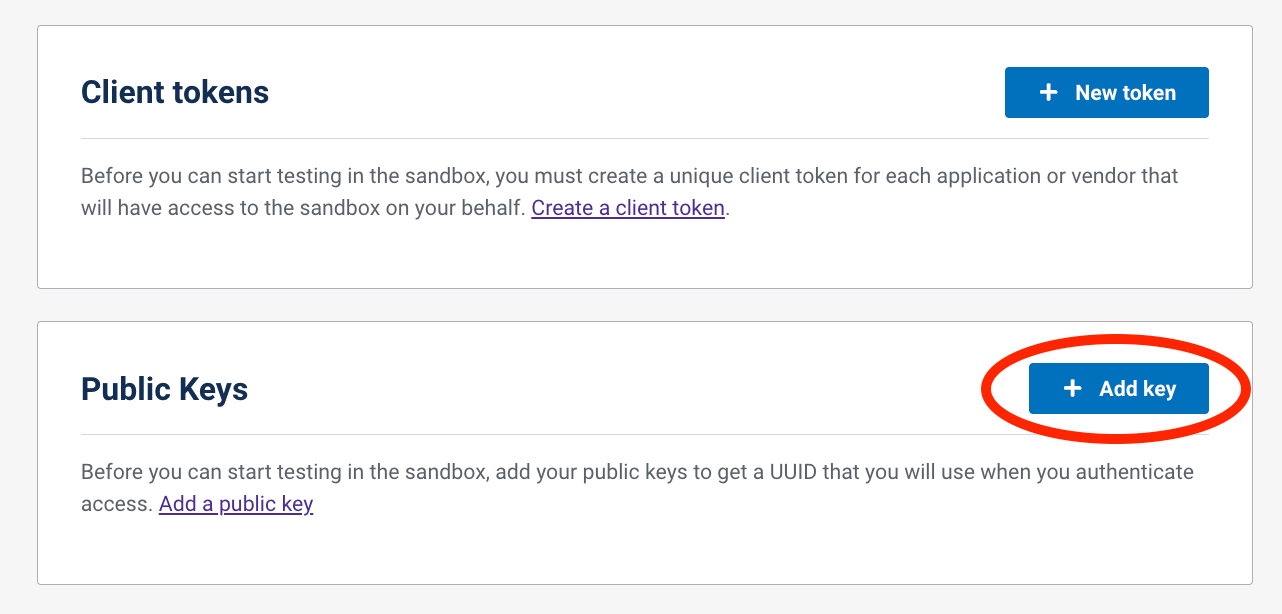
- Follow the sequential steps on screen to:
- Generate a private key
- Generate a public key
- Create (and verify) a public key snippet
- Generate a verified public key signature
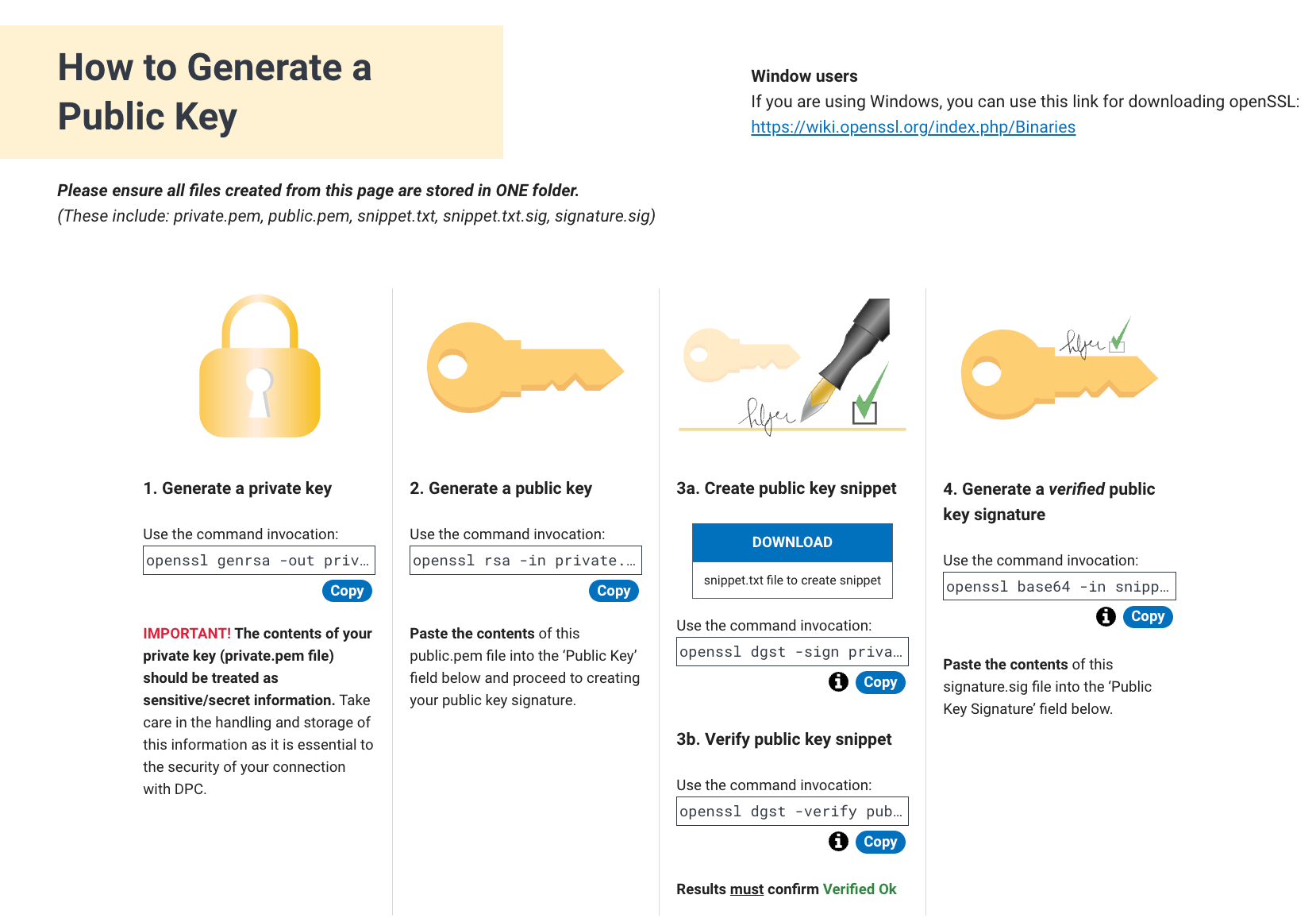
1. Generate a private key
Select copy on the DPC Sandbox site or copy the command invocation here:
openssl genrsa -out private.pem 40962. Generate a public key
Select copy on the DPC Sandbox site or copy the command invocation here:
openssl rsa -in private.pem -outform PEM -pubout -out public.pem3a. Download the snippet.txt file
curl -JLO 'https://raw.githubusercontent.com/CMSgov/dpc-app/main/dpc-web/public/snippet.txt'3b. Create your public key snippet
openssl dgst -sign private.pem -sha256 -out snippet.txt.sig snippet.txt4. Generate a verified public key signature
Select copy on the DPC Sandbox site or copy the command invocation below.
openssl base64 -in snippet.txt.sig -out signature.sig4. Upload your public key in the DPC Sandbox site
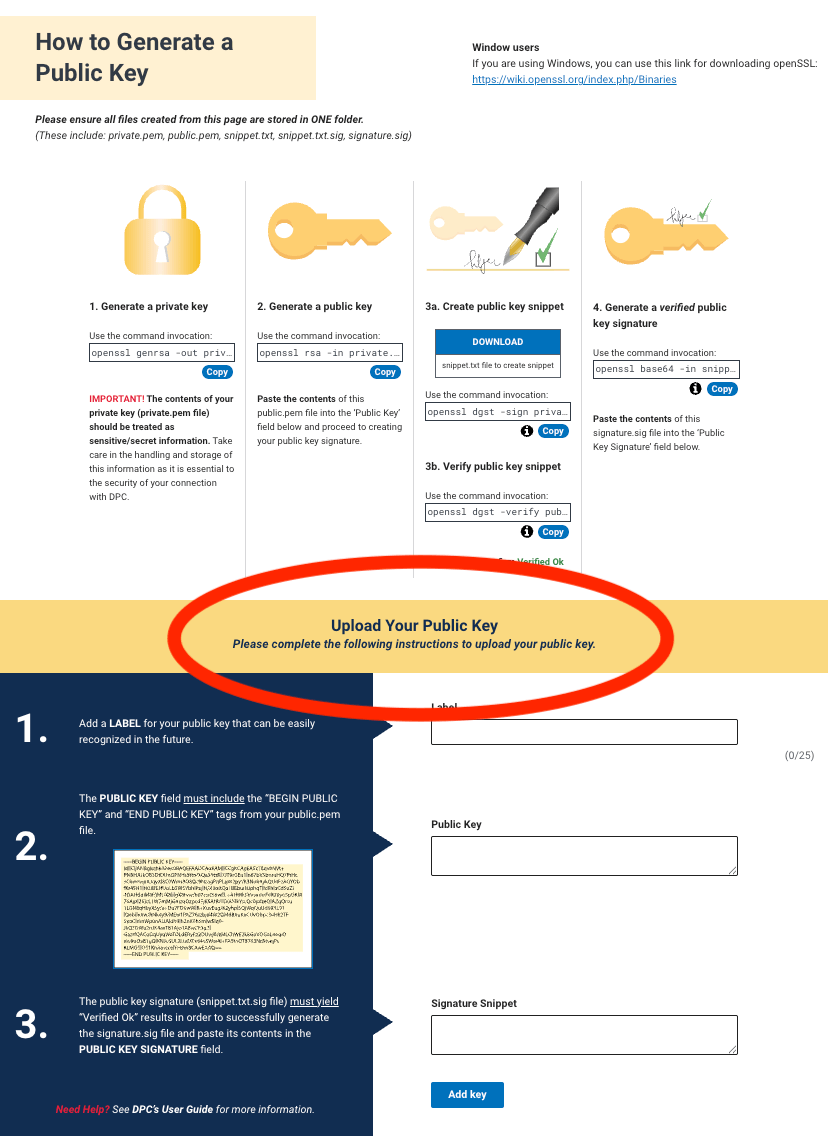
- Go to the Upload Your Public Key section.
- Create a label for your public key. Make the label easy to recognize.
- Paste the
public.pemfile you created into the “Public Key” field. - Include
BEGIN PUBLIC KEYandEND PUBLIC KEYbefore and after your key. - Paste the contents of the
signature.sigfile you created into the “Signature Snippet” field. - Select Add key.

